How to enroll in your benefits
This guide will walk you through enrolling in your benefits.
Text Guide (click on the images to enlarge them)
1. Begin by logging in to the portal. Once logged in, navigate to the "Profile" item in the left hand navigation.

2. Navigate to the "Benefits Enrollment" section.

3. Along the top of the page you will see the various types of benefits, based on what you have available through your employer.
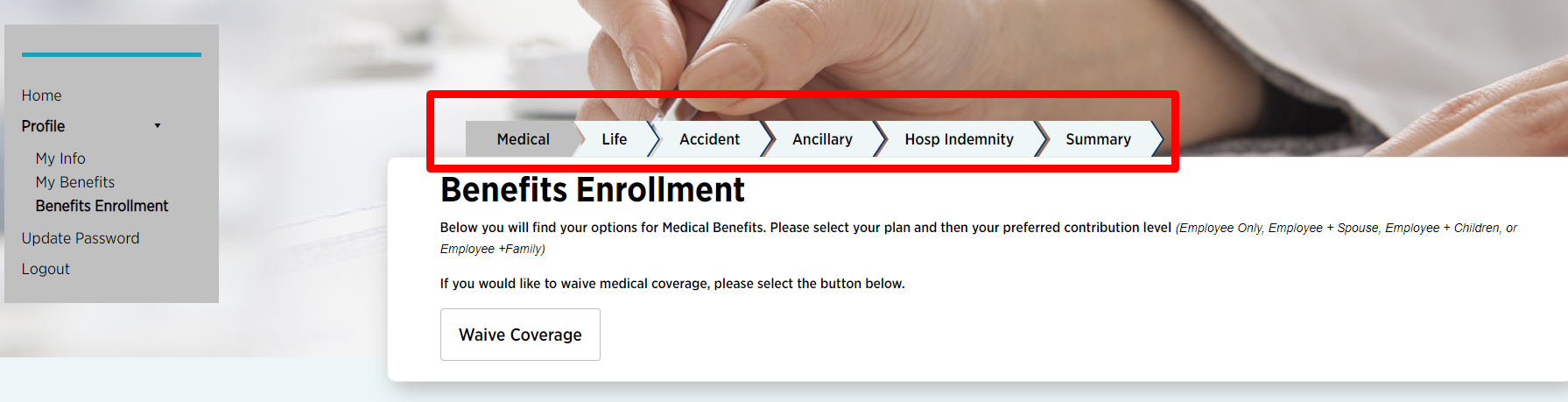
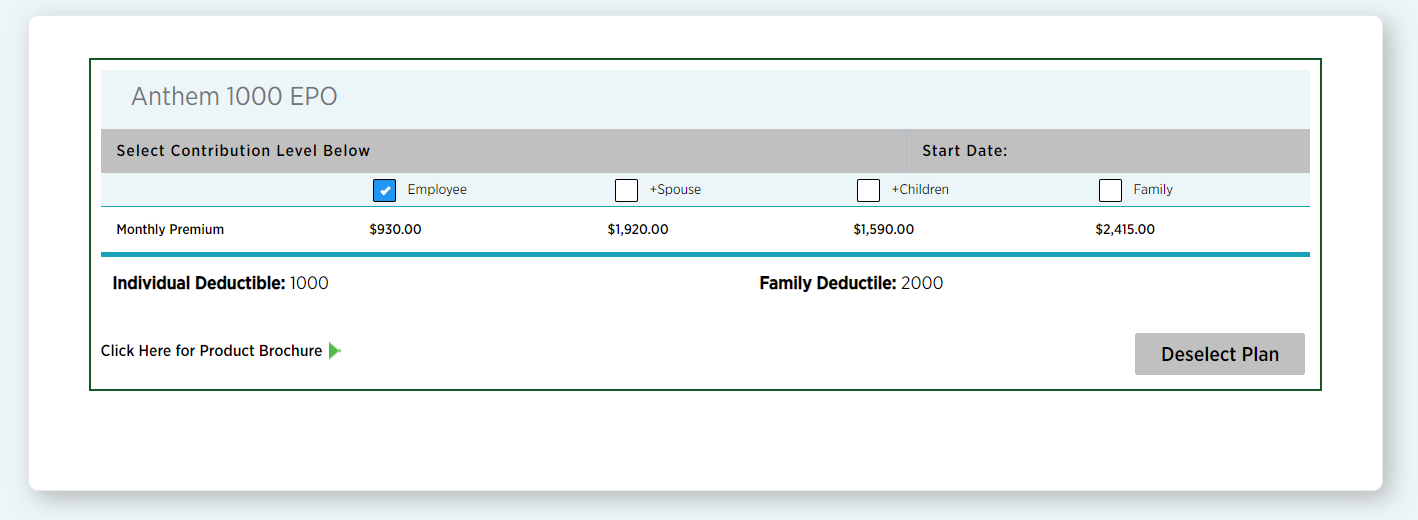
4. On the page you will see the various plans within the type of benefits, and the pricing will be shown per coverage level. If your employer set Contribution levels, these will show here too, as will the Deductible amounts. If the plan has a brochure or a video, you will be able to see it here too.

5. To select a plan, you will need to check the checkbox and then click the "Select Plan" button.

6. Once you've successfully selected a plan, it will have a green outline around it. Scroll to the bottom of the page and click "Next" to go to the next category.
7. If you wish to Waive Coverage for a particular benefits type, you can click the "Waive Coverage" button and it will then show "Coverage Waived". You can then proceed to the next step.

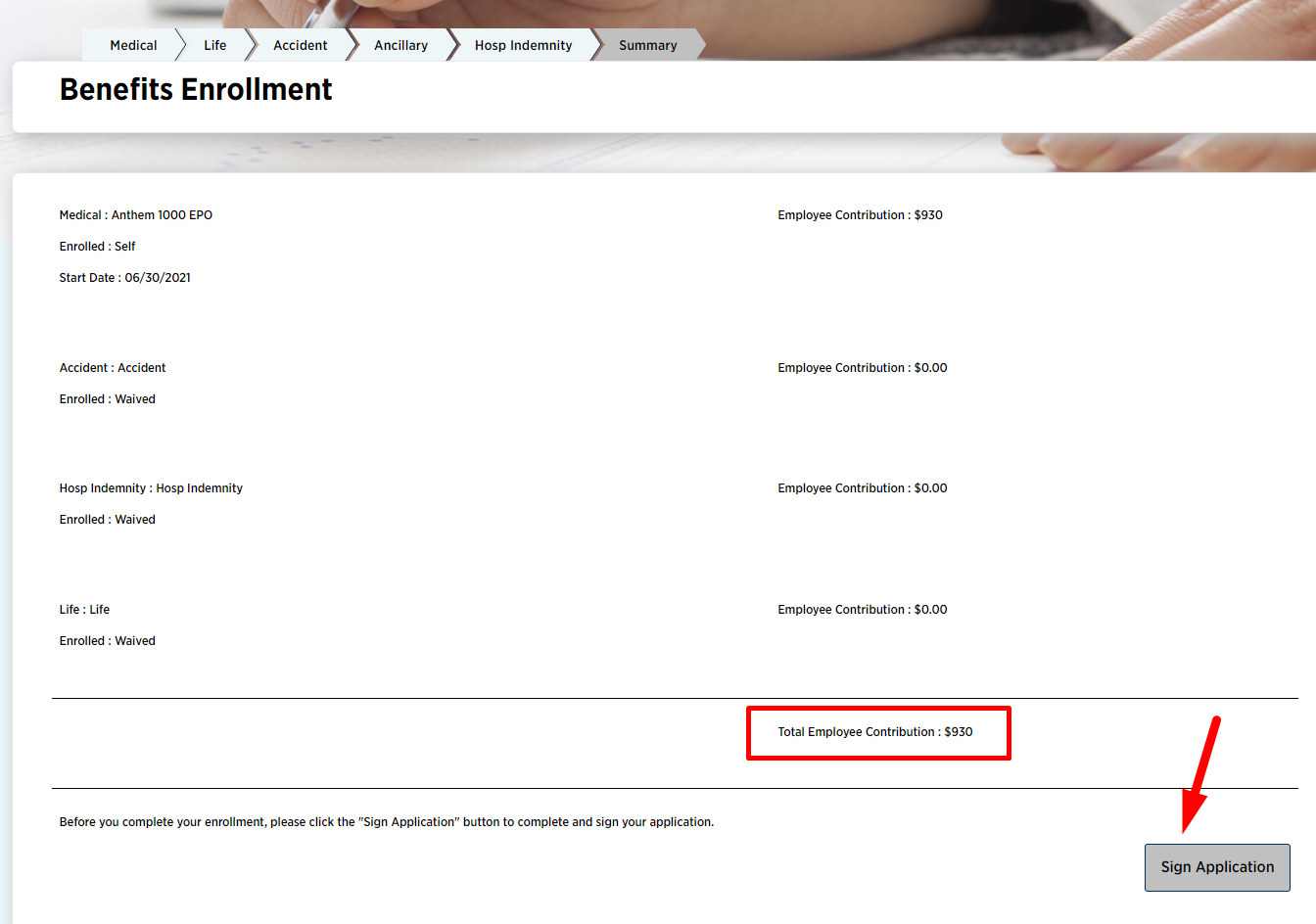
8. On the last page, you will see a summary of all premiums. Please check and make sure are you in agreement with these.
Depending on your employer, you might need to E-Sign an application form. If that is the case, there will be a "Sign Application" button on the bottom right.
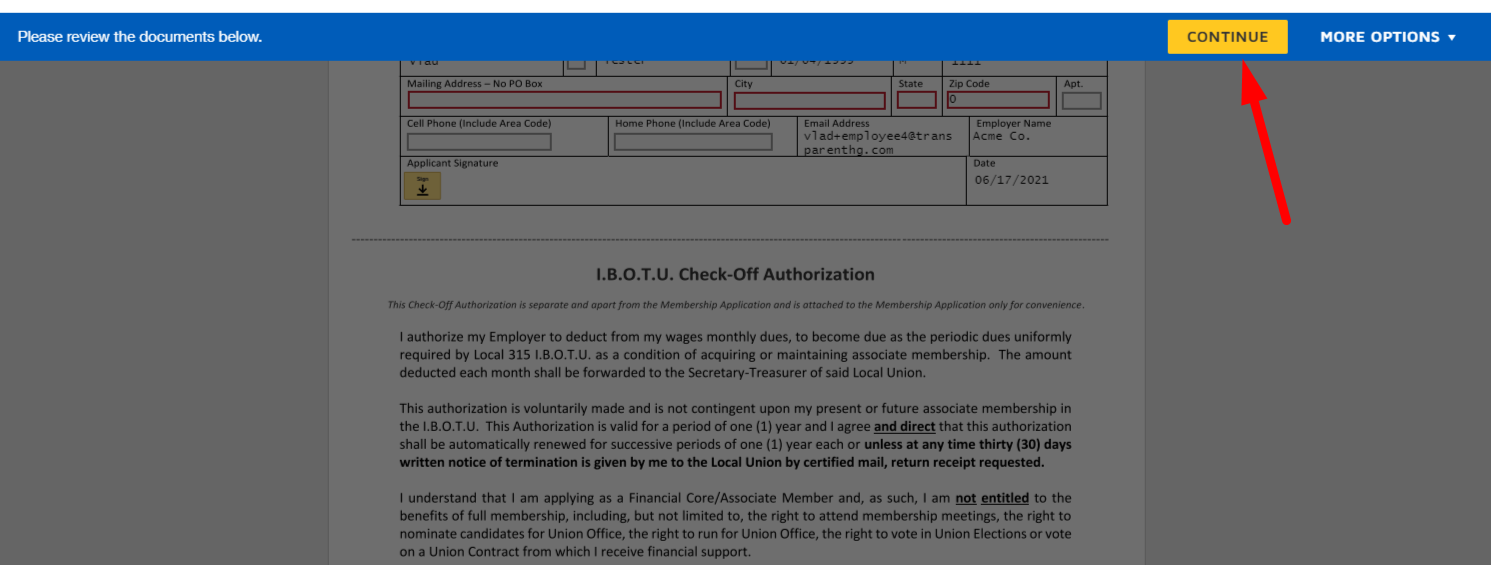
9. This will load the document. Please press "CONTINUE" and fill out all the required fields. Once you're done, press "FINISH".
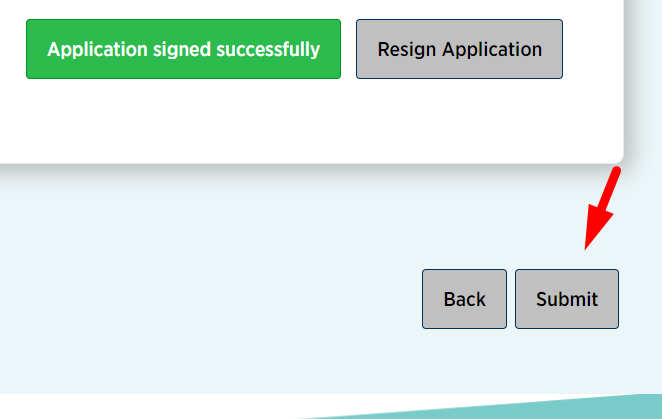
10. The last step is to submit your enrollment by clicking the "Submit" button.
11. You will now be redirected to the "My Benefits" page which shows all the benefits you've enrolled into.
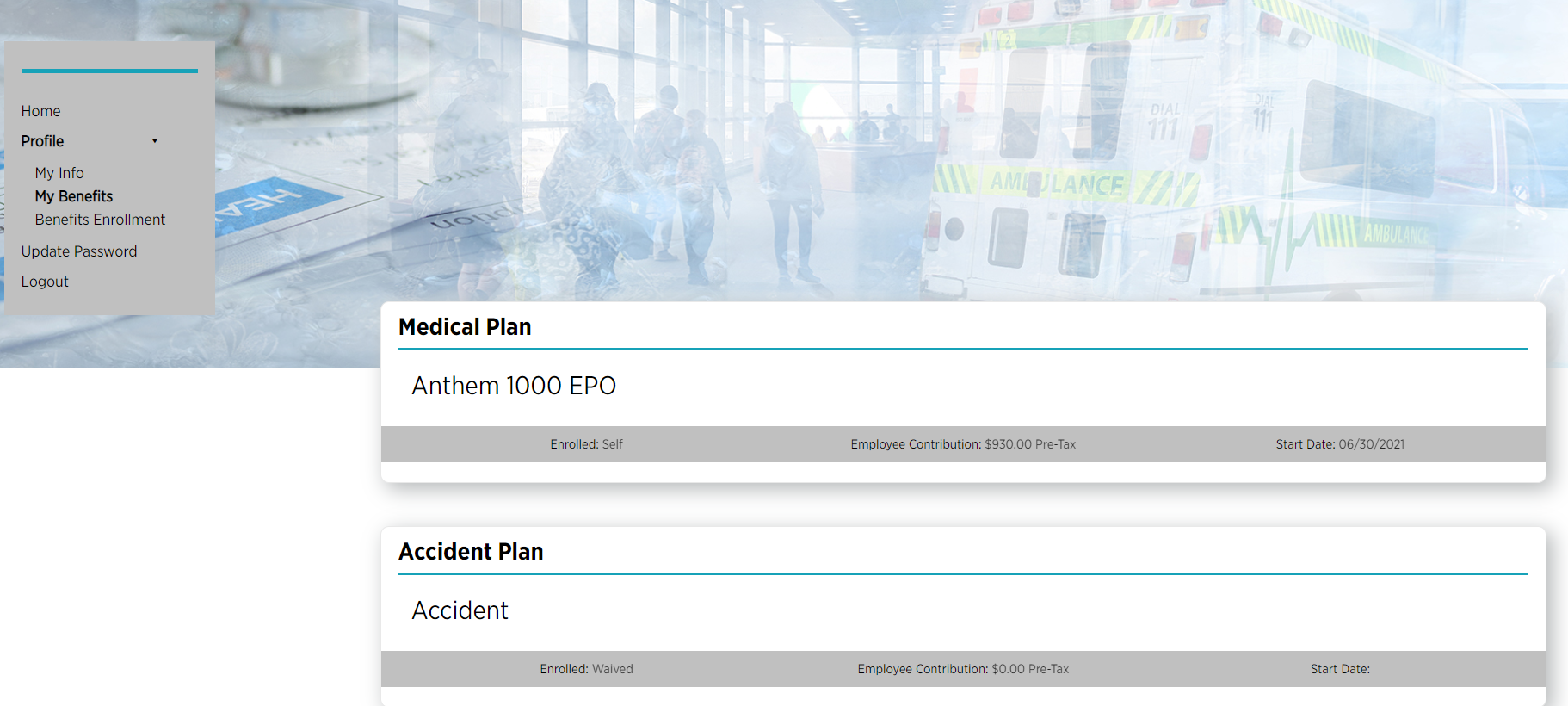
Congratulations, you have successfully enrolled into your health benefits.
Go Back