How to manually add a new employee in the benefits portal
This guide will walk you through manually adding a new employee to your company portal. This document begins after to have registered your company and logged in with your employer user name and password.
We provide this guide in two formats, video and text - so feel free to use either of them.
Video Guide
Text Guide (click on the images to enlarge them)
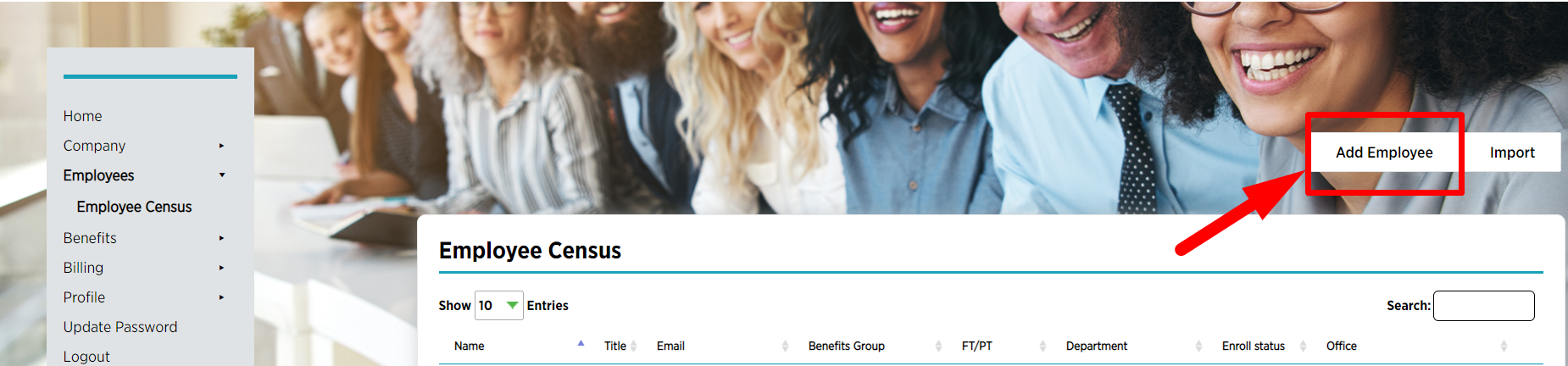
1. Begin by clicking on the "Employees" drop down on the left hand side of the screen.

2. When the drop down expands select the "Employee Census" option.

3. Now select the Add Employee option by clicking on the button in the upper right corner of the screen.
4. At this point you will need to fill in the information on the new employee form. Please note that fields marked with red asterisks are mandatory.

5. Once all the information for the employee has been entered you will have the option to add family members or to finish adding the employee.
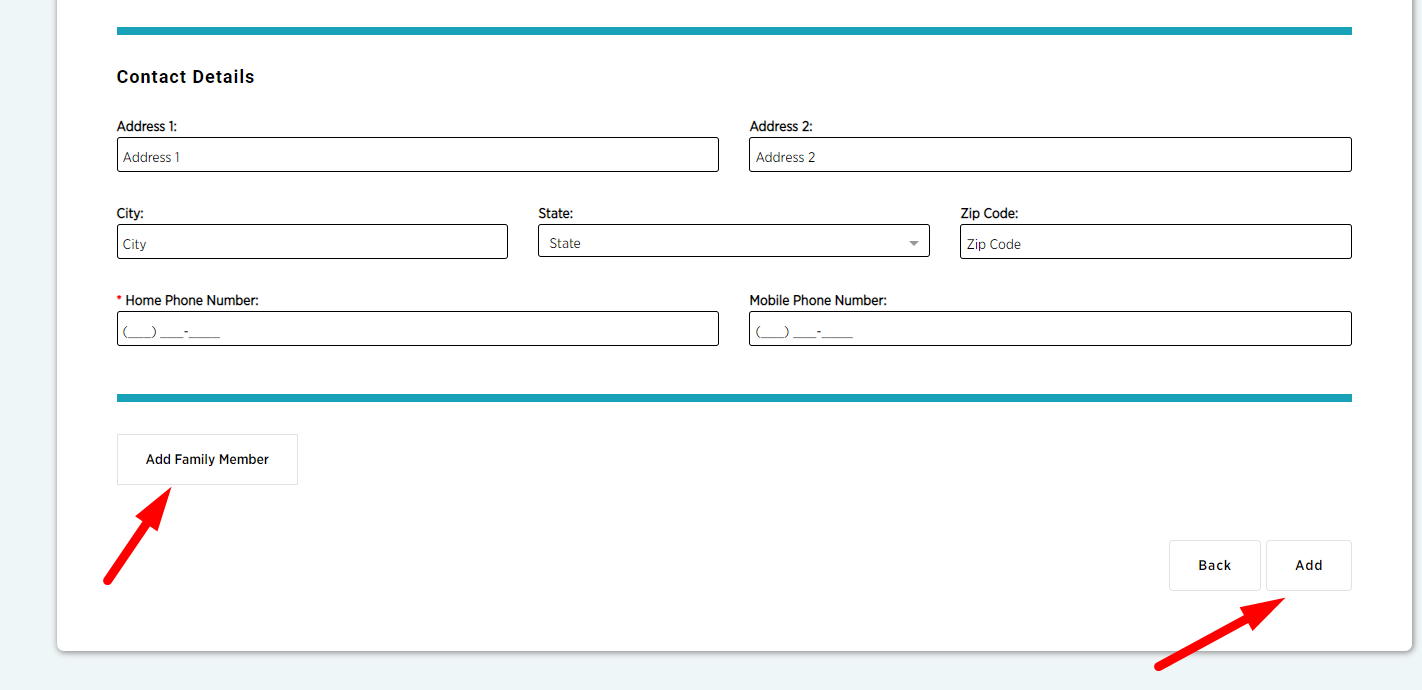
6. If you select add family member a new set of fields will open and must be completed. Steps 5 and 6 need to be repeated for each family member you wish to add.
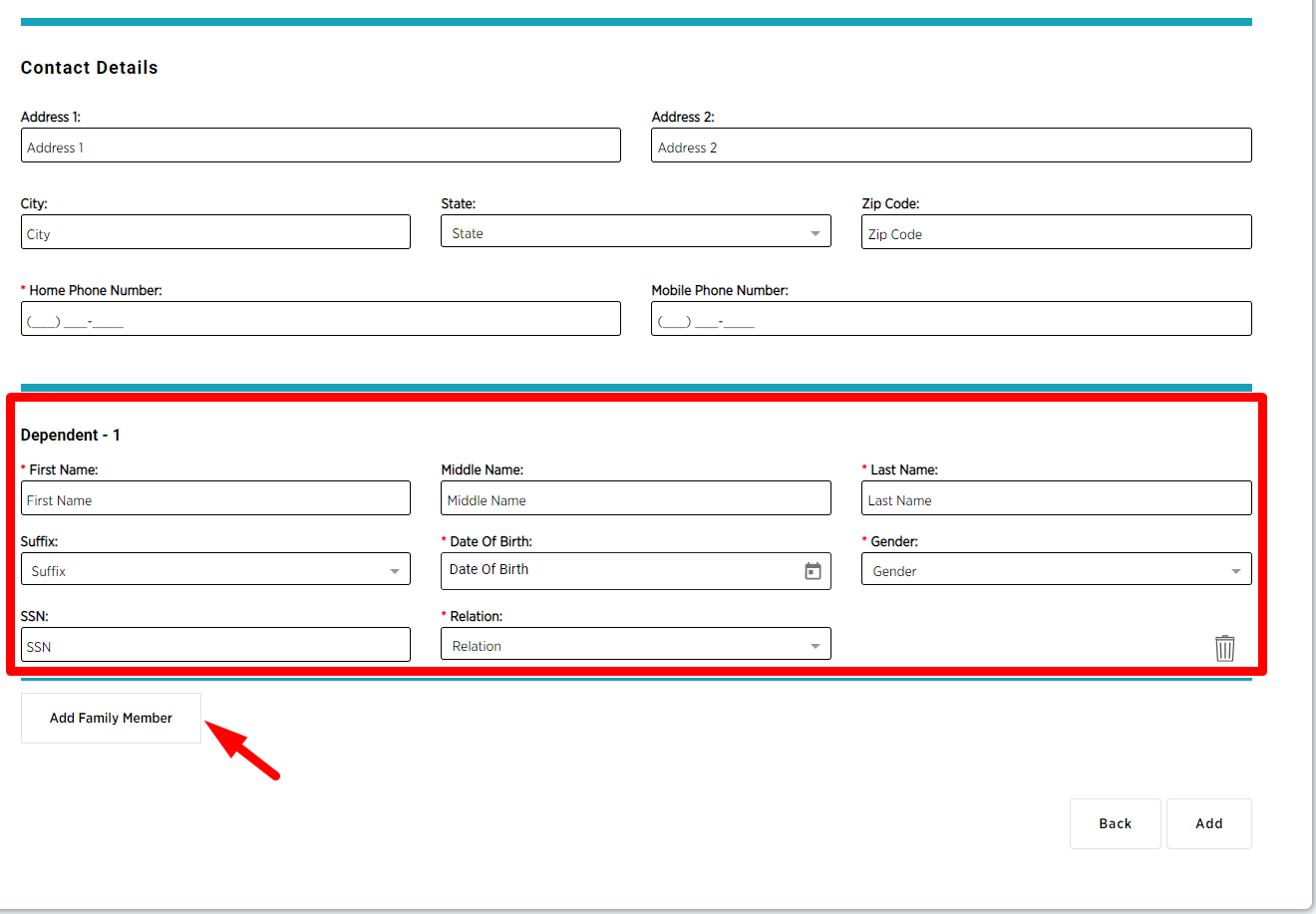
7. Once all family members are added click the add button in the lower right-hand corner of the page.
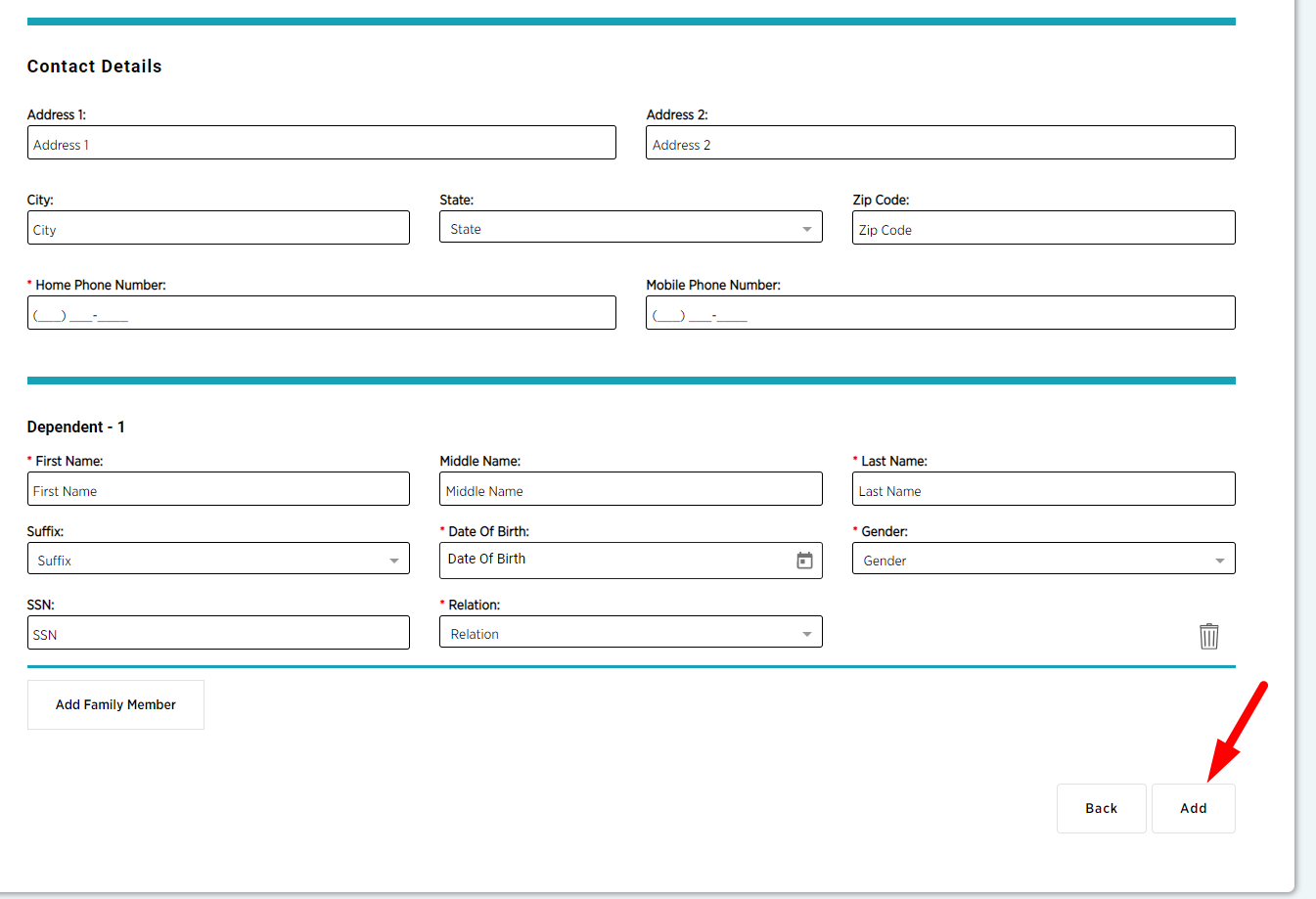
Congratulations, you have successfully added an employee.
Go Back